Introduction
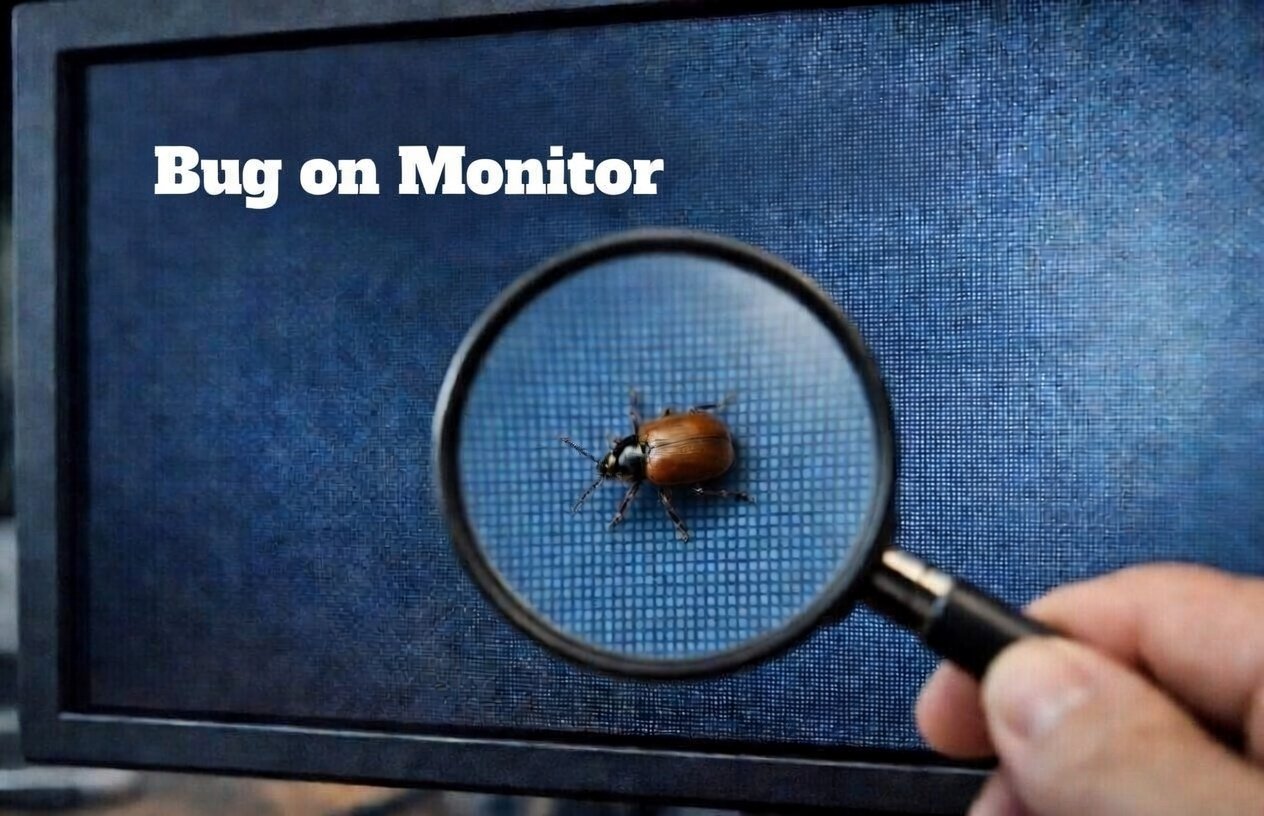
The Bug on Monitor issue is surprisingly common and can be frustrating when you’re trying to focus on work or gaming. A bug on monitor often appears as a small moving dot or speck that doesn’t behave like a dead pixel or dust spot. Many people panic, thinking it’s a screen defect, but it’s usually a real insect trapped inside the display layers.
Monitors, especially LCD or LED ones, generate heat and light from the backlight, which attracts small insects like flies, ants, or thrips in dark rooms. Once inside, they get stuck between the protective layers, diffuser sheets, or near the panel edges. This creates the illusion of a bug on monitor that’s crawling or stationary in your view.
Why Does a Bug on Monitor Happen?
Monitors are not completely sealed units. Tiny gaps around the bezel, ventilation holes, or assembly seams allow small insects to enter, especially in warm, humid environments or during nighttime use without extra room lighting. Manufacturers like BenQ have addressed this in their support FAQs, explaining that the backlight warmth draws bugs in dark settings.
Common culprits include:
- Tiny flying insects (thunderflies/thrips)
- Ants seeking warmth
- Small flies or gnats
It’s rarely a manufacturing fault but an environmental one. Forums like Linus Tech Tips show users sharing similar stories, where bugs appeared suddenly and moved across the screen.
How to Tell If It’s Really a Bug on Monitor (Not a Dead Pixel or Dust)
Distinguishing a bug on monitor from other issues is key to avoiding unnecessary worry or damage.
- Movement: A true bug on monitor moves, changes position, or crawls when the screen is on. Dead pixels stay fixed in one spot.
- Shape and color: Bugs often look irregular, dark, or shadowy, sometimes with legs visible up close. Dead pixels are perfect squares, black (dead) or colored (stuck).
- Response to light/heat: Turn off the monitor—if the “spot” disappears or moves away as it cools, it’s likely a live bug.
- Test: Shine a bright flashlight from the side or back. If it scurries, it’s alive.
If it’s static and doesn’t change with color tests (use online dead pixel checkers), it might be dust or a pixel issue instead.
Safe Ways to Remove a Bug on Monitor
The golden rule: Never press or squish the bug on the screen. This can damage the LCD layers, cause leaks, or create permanent marks.
For Live Bugs (Most Common Scenario) Follow these reassuring steps from reliable sources like WikiHow and manufacturer advice:
- Power off and unplug the monitor completely. Let it cool down for 30–60 minutes.
- Lure it out with light: Place a bright flashlight or lamp next to the monitor (aimed at vents or sides). The bug prefers light over the now-dark screen and may crawl out through gaps.
- Use gravity: Gently tilt or turn the monitor upside down (screen facing down if safe) to encourage movement downward.
- Wait patiently: Many users report bugs leaving after 24 hours of the monitor being off.
For Dead Bugs If the insect has passed away and is stuck:
- Wait for drying: Give it time (a day or two) for the body to dry out.
- Gentle tapping: With the monitor off and unplugged, lightly tap the back or edges (not the screen) to dislodge it so it falls to the bottom bezel, out of sight.
- Alternative vibration: Some suggest using a soft electric toothbrush on the back to create gentle vibrations that shift the debris.
Avoid compressed air directly on the screen or any liquids unless through vents carefully.
When to Get Professional Help for a Bug on Monitor
If DIY methods fail:
- Contact the manufacturer’s service center (e.g., BenQ notes this isn’t typically covered by warranty, but they can clean it).
- Avoid opening the monitor yourself unless experienced—disassembly risks voiding warranty or breaking delicate ribbons/glass.
In severe cases (multiple bugs or infestation), address your room’s pest issue first with cleaning or professional exterminators.
Prevention Tips to Avoid Future Bug on Monitor Issues
Preventing a bug on monitor recurrence is simple and effective:
- Keep your workspace clean: Remove food crumbs, trash, or standing water that attract insects.
- Use a dust cover: Cover the monitor when not in use.
- Add room lighting: Avoid total darkness during long sessions—use a desk lamp to reduce backlight attraction.
- Seal gaps: Close windows/doors at night or use screens.
- Turn off completely: Shut down the monitor fully (not just sleep mode) when done.
These habits drastically lower the chances of another bug on monitor surprise.
Real User Experiences with Bug on Monitor
Many people share stories online. In one forum thread, a user saw bugs disappear after leaving the monitor off overnight. Others tried luring with light successfully. WikiHow guides emphasize patience and non-destructive methods, reassuring that most cases resolve without harm to the screen.
Conclusion
Dealing with a bug on monitor can feel alarming at first, but it’s a common, fixable issue caused by light and heat attracting insects into the display layers. By powering off, using light to lure live ones out, gently tapping dead ones away, and following prevention steps, you can resolve it safely and get back to clear viewing. Most importantly, stay calm—avoid pressing the screen—and your monitor will likely be fine.